
How to Manage Paper Setting from Admin
Login to the Manuscript ERP with your credentials. On successful login, you'll land on the Manuscript dashboard.

From the top navigation bar, click Pre-Press, then click the Paper Setting tab. Papers move to Paper Setting after the DOI is generated and the ISBN number is passed. The Page Setting Records page will open, where you can search for journals and view the Journal Code, Journal, Category, Status, and Action. You can also export the details as an Excel sheet or PDF.
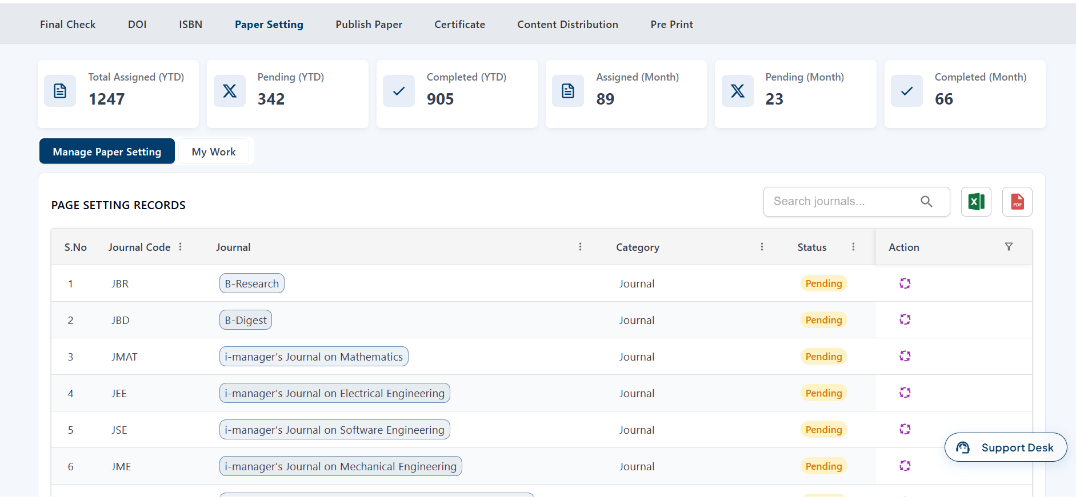
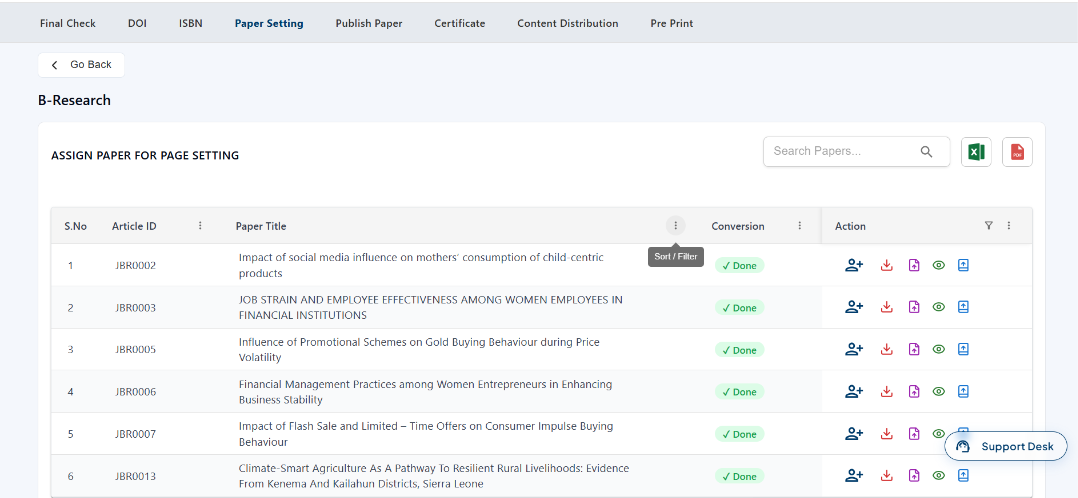
Click the Action icon for the required journal to open the paper setting page. On the Assign Paper for Page Setting page, you can view the Article ID, Paper Title, Conversion status, and Action options for each paper. You can search for papers, use the available Action icons to assign and manage papers for page setting, and export the paper details as an Excel sheet or PDF.
From the Paper Setting page, click My Work to view the papers assigned to you. You can view the Category, Journal, Assigned On, Status, and Action details. You can also search for journals and export the details as an Excel sheet or PDF.
