Managing Terms & Conditions
Login to the Manuscript ERP with your credentials, on the top of the Top navigation bar you will see the gear icon near the Notification Bell.

Click on the configuration icon in the top-right corner of the icon it will list the menu. Choose the configuration you need to access, and it will take you to the configuration page with the menus on the left-hand side, clicking on the menus on the left-hand side will open the configuration you need to access,In the Configuration page, open Terms & Conditions from the left-hand menu. The Terms & Conditions page will open, where you can view the available terms and conditions.

Adding Terms & Conditions
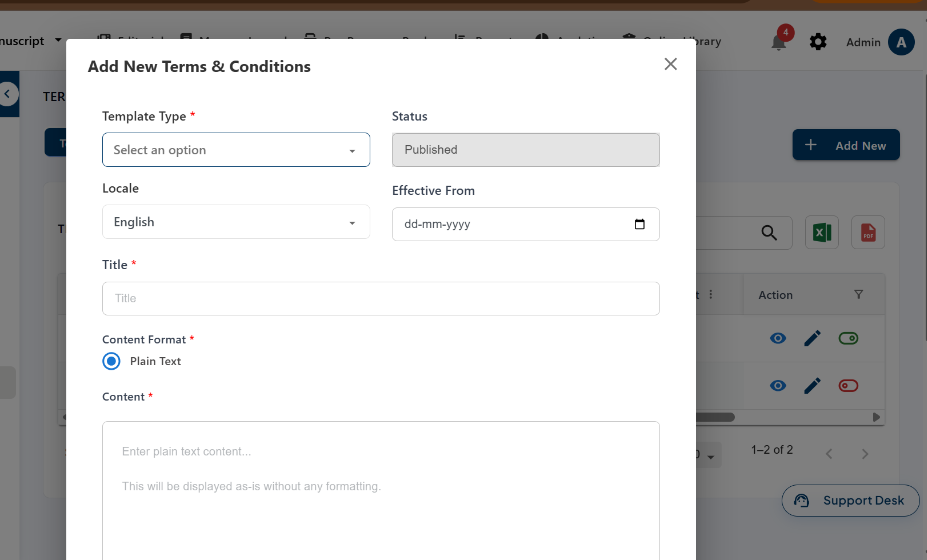
In the Terms & Conditions page, click Add New. Select the Template Type, set the Effective From date, enter the Title and Content, and select the required Locale and Content Format. Click Save to add the terms and conditions.
Adding an FAQ
In the Terms & Conditions page, select the FAQ tab and click Add New. You can also edit the question by using edit icon.
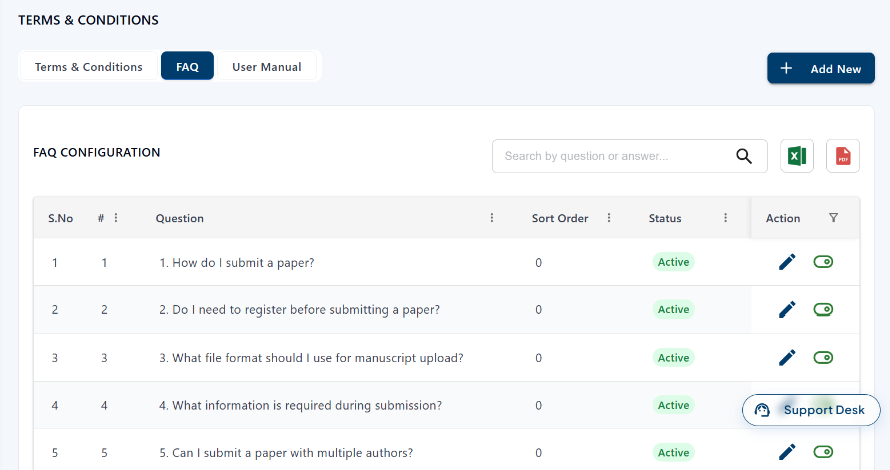
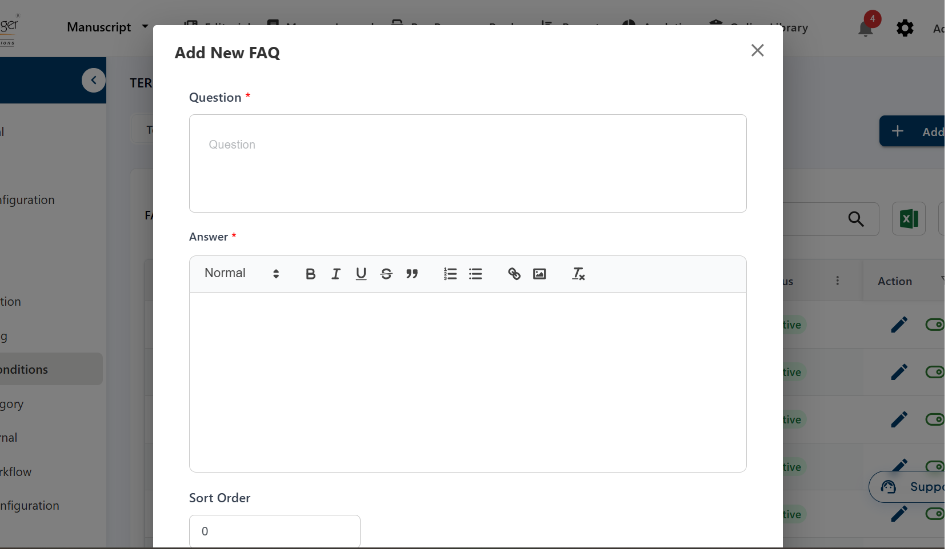
The add FAQ page open.Enter the Question, provide the Answer, set the Sort Order, and click Save to add the FAQ.
Adding an User Manual
In the Terms & Conditions page, click the User Manual tab and select Add New.You can also edit the user manual configuration by using the edit icon .
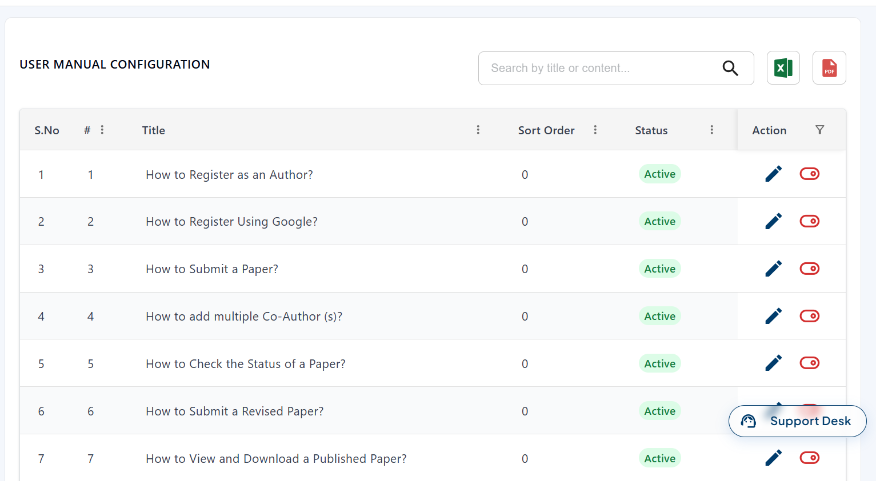
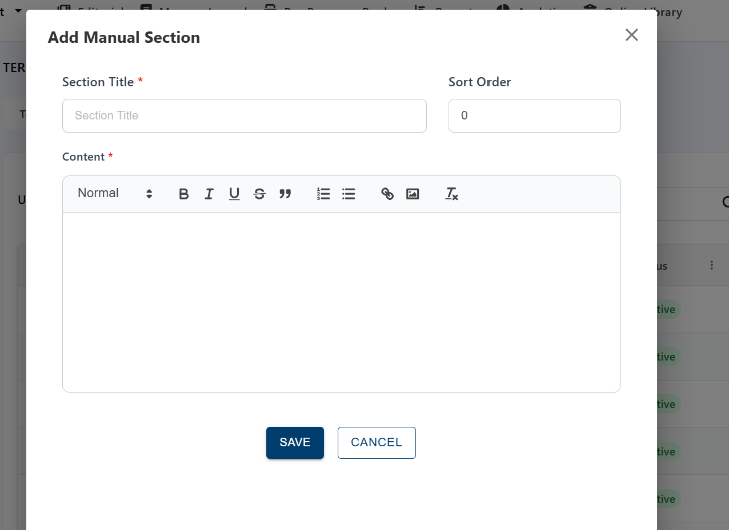
The add manual page open .Enter the Section Title, set the Sort Order, add the required Content, and click Save.