Managing Page Setting
Login to the Manuscript ERP with your credentials, on the top of the Top navigation bar you will see the gear icon near the Notification Bell.

Click on the configuration icon in the top-right corner of the icon it will list the menu. Choose the configuration you need to access, and it will take you to the configuration page with the menus on the left-hand side, clicking on the menus on the left-hand side will open the configuration you need to access,In the Configuration page, open Page Setting from the left-hand menu. The Page Setting Templates page will open, where you can view the available page setting templates.

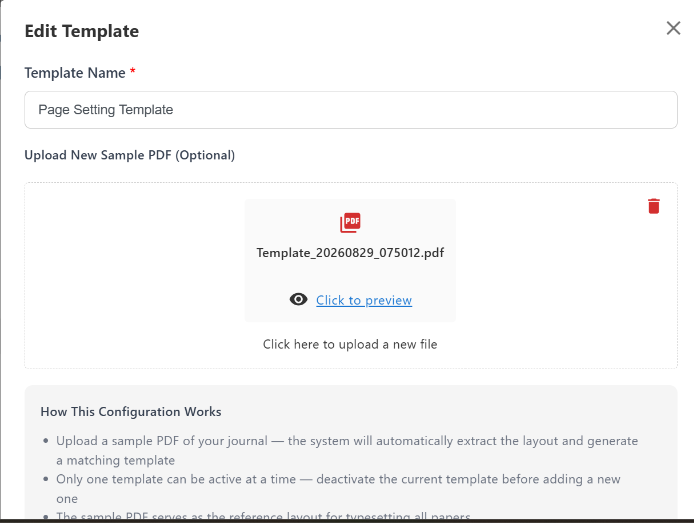
Editing Page Setting Template
In the Page Setting page, click the Edit icon for the required template. Update the Template Name if required and upload a new Sample PDF if needed. Click Update to save the changes.
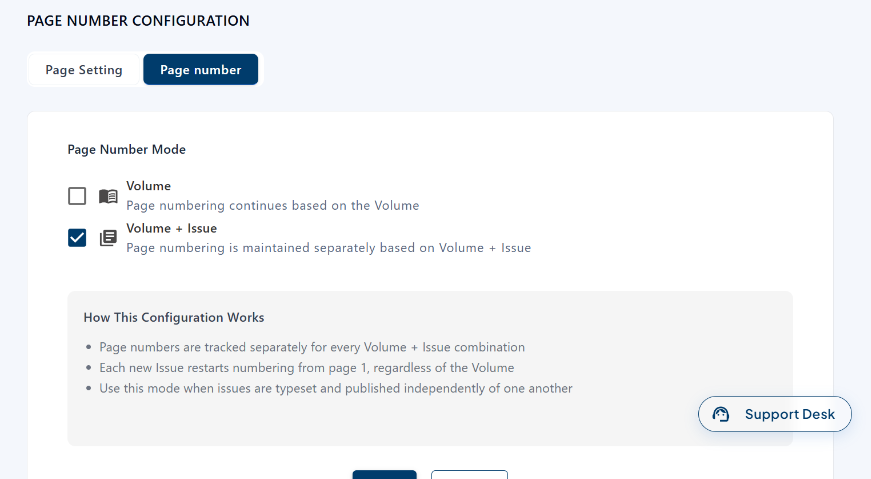
Managing Page Number Configuration
In the Page Setting page, select the Page number tab. Select Volume or Volume + Issue as required for page numbering. Click Update to save the page number configuration.