Managing Data Migration Configuration
Login to the Manuscript ERP with your credentials, on the top of the Top navigation bar you will see the gear icon near the Notification Bell.

Click on the configuration icon in the top-right corner of the icon it will list the menu. Choose the configuration you need to access, and it will take you to the configuration page with the menus on the left-hand side, clicking on the menus on the left-hand side will open the configuration you need to access,In the Configuration page, open Data Migration from the left-hand menu. The Data Migration Configuration page will open, where you can manage migrations for Journals, Reviewers, EIC, and Authors.

Adding Journal Migration
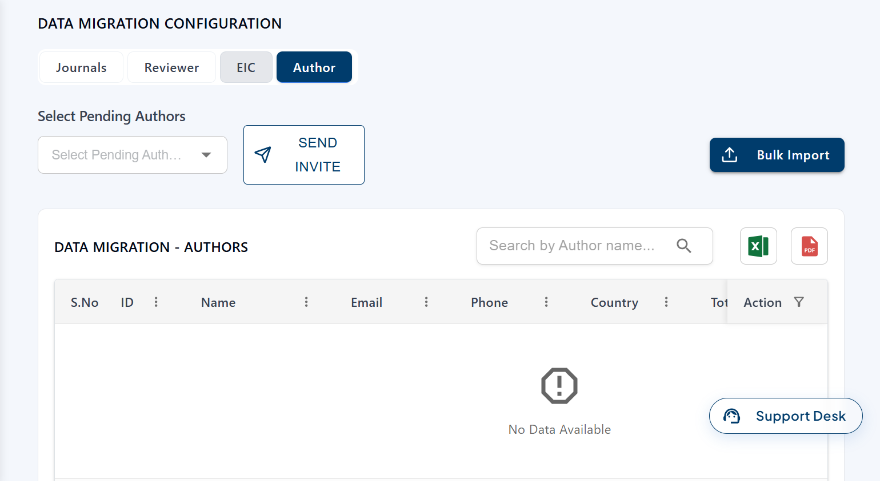
In the Data Migration Configuration page, select the Journals tab and click New Migration. Select the Journal, Volume, and Issue. Under Papers, select the Author and upload the paper file. Click Submit Data to add the paper to the migration.
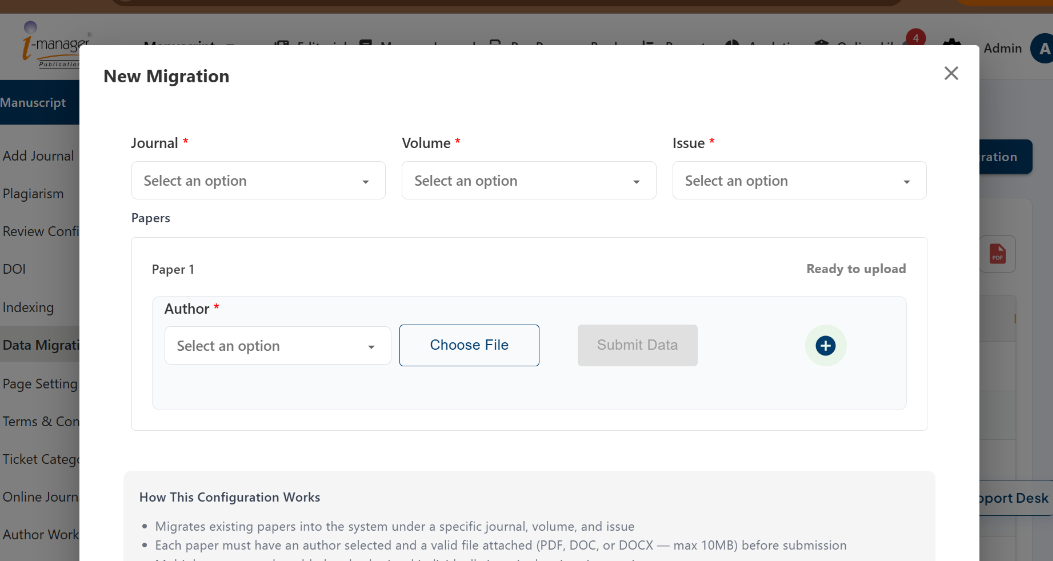
Managing Reviewer Data Migration
In the Data Migration Configuration page, select the Reviewer tab to view the Data Migration - Reviewers List. You can select pending reviewers and click Send Invite, or click Bulk Import to add reviewers in bulk. You can also search for reviewers and use the View or Delete icons to manage the reviewer records.
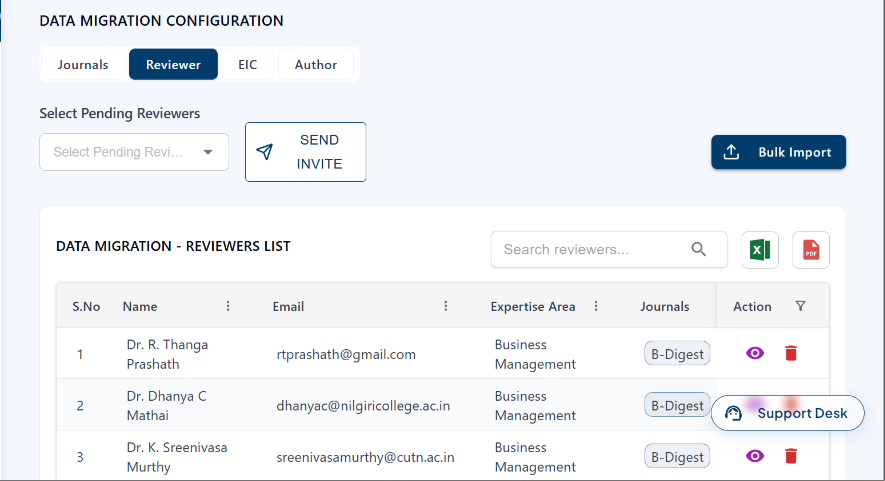
Managing EIC Data Migration
In the Data Migration Configuration page, select the EIC tab to view the Data Migration - Editors List. You can select pending editors and click Send Invite, or click Bulk Import to add editors in bulk. You can also search for editors and view the available editor records.
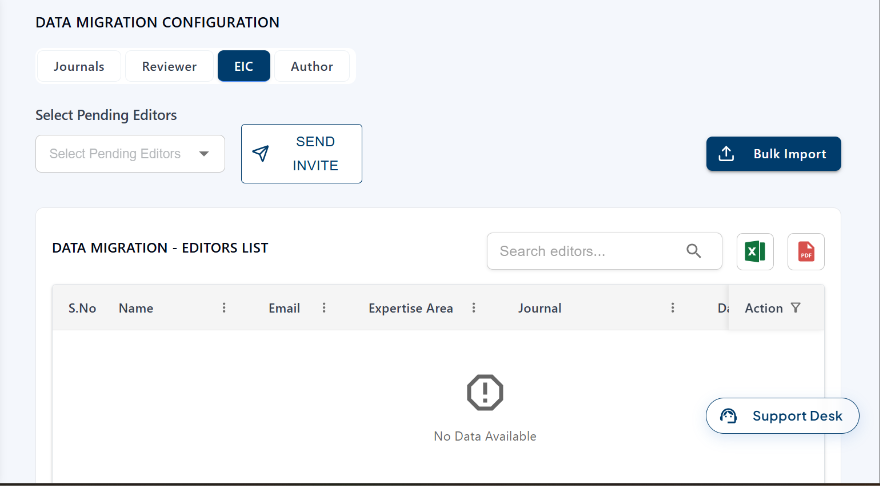
Managing Author Data Migration
In the Data Migration Configuration page, select the Author tab to view the Data Migration - Authors list. You can select pending authors and click Send Invite, or click Bulk Import to add authors in bulk. You can also search for authors and view the available author records.